Add a user to a permission group
Where membership is set
Section titled “Where membership is set”Group membership lives on the user, not on the group. To change what someone can do, use the ⋮ menu on their row in the Users page — there is no “add member” action on the group itself.
Two menu entries get you there. Edit permissions changes only their groups and is the quicker route; Edit opens the full record if you also need to correct a name or email.
What changes, and when
Section titled “What changes, and when”Permissions are additive: a user in two groups can do anything either group allows. Adding a group can only widen what someone can do; to narrow it, remove a group.
Changes take effect on their next page load. A colleague who still cannot see something after being added should reload before anything else is investigated.
The common cases
Section titled “The common cases”- A new starter sees almost nothing. They were invited without groups.
- Someone changes team. Remove the old group as well as adding the new one — adding alone leaves the old access in place.
- Someone leaves. Removing groups is not the same as removing access. Their account still exists, and their specialist profile is separate from it.
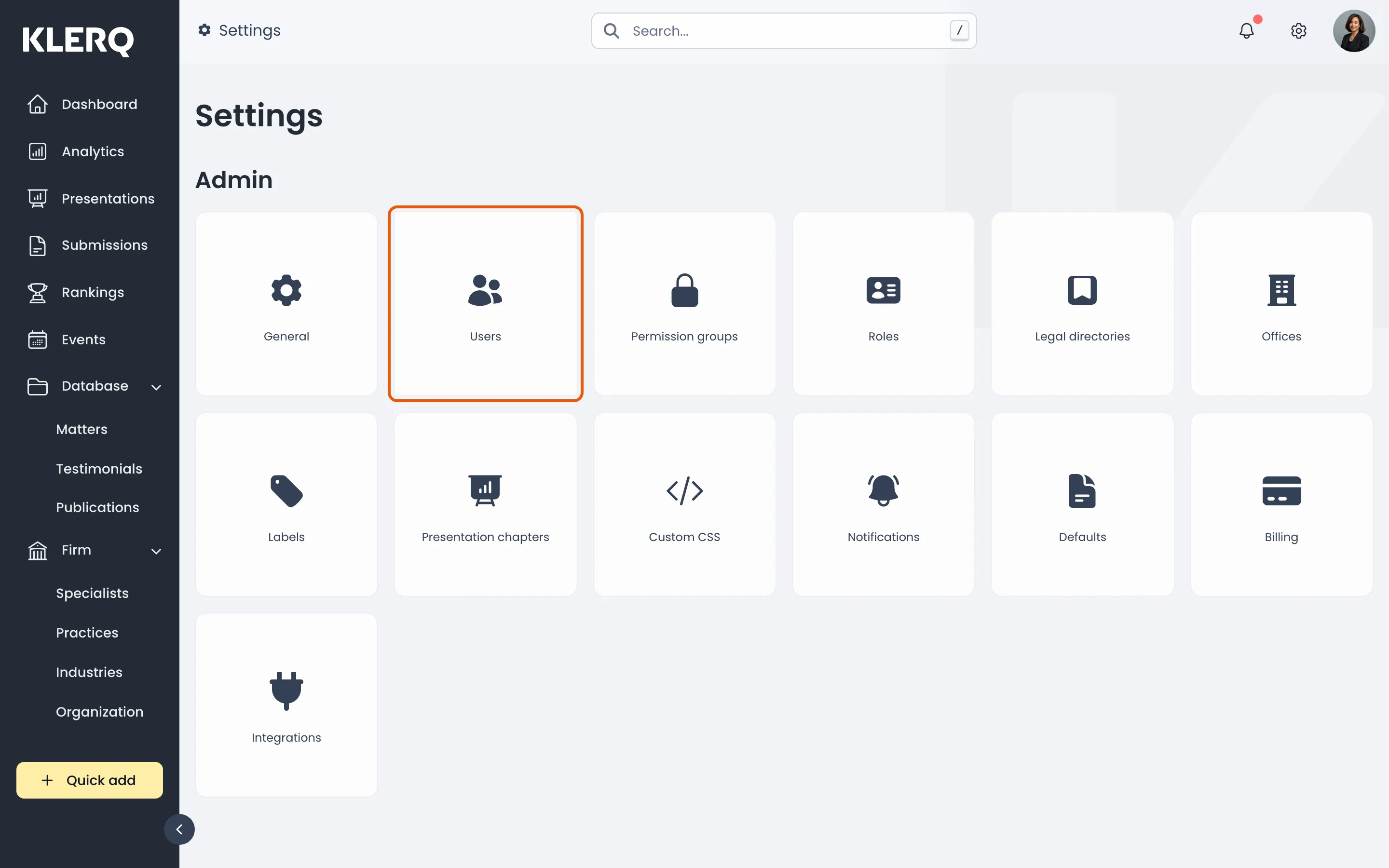
- Click the gear icon in the top bar to open Settings.

- On the Settings page, choose Users.
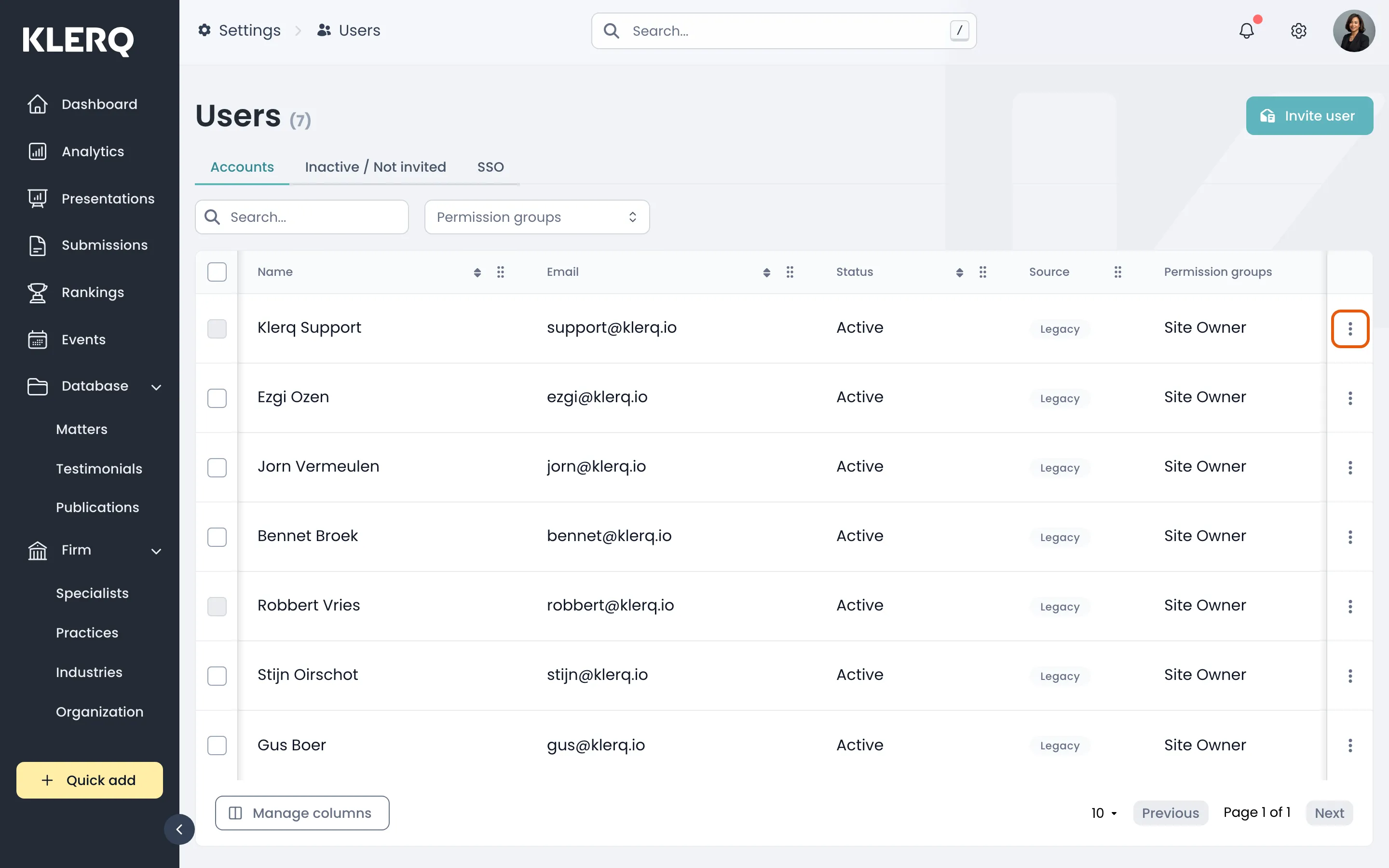
- Find the colleague, then open the ⋮ menu at the end of their row.
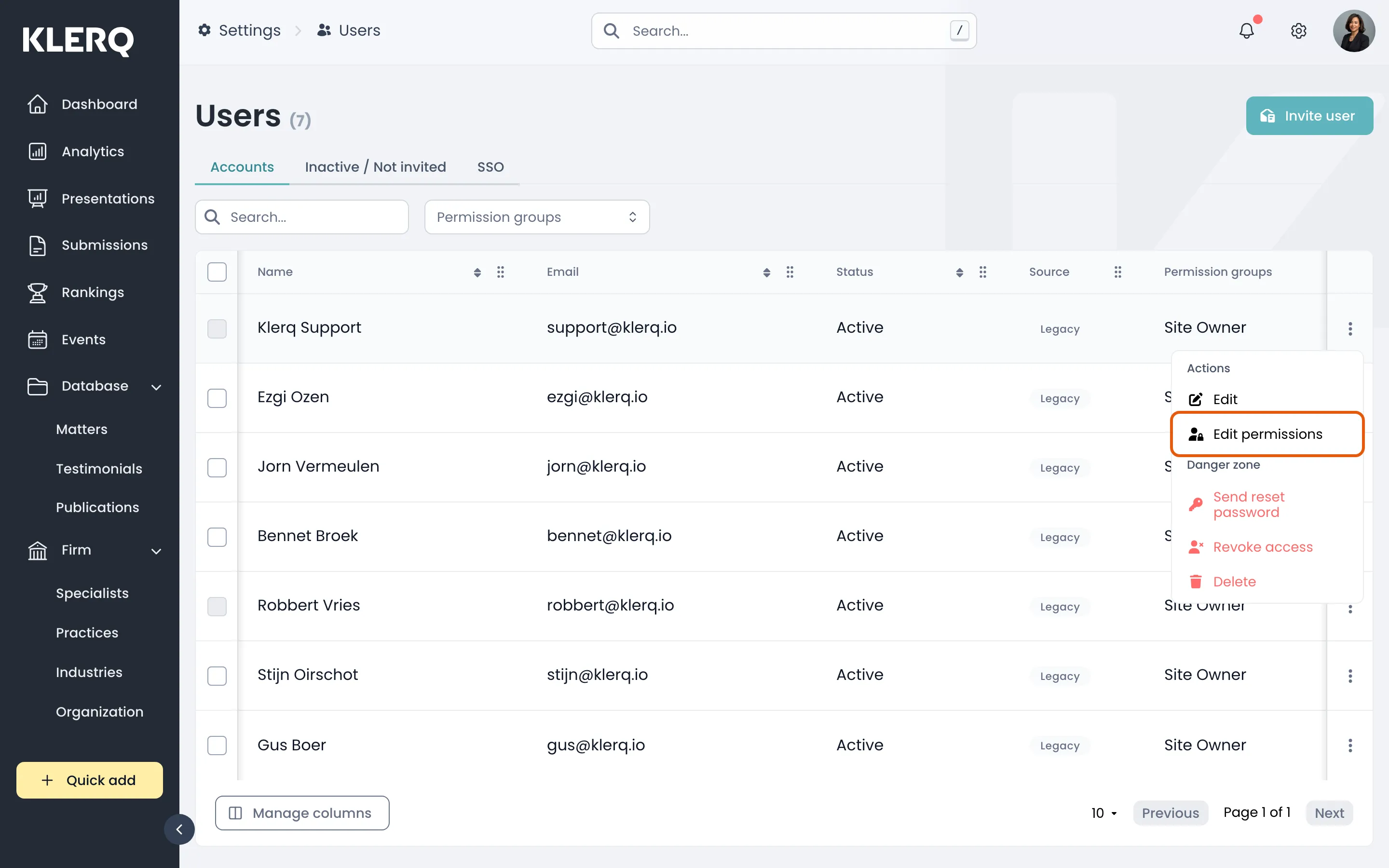
- Choose Edit permissions. (Edit opens the full record if you also need to change their name or email.)
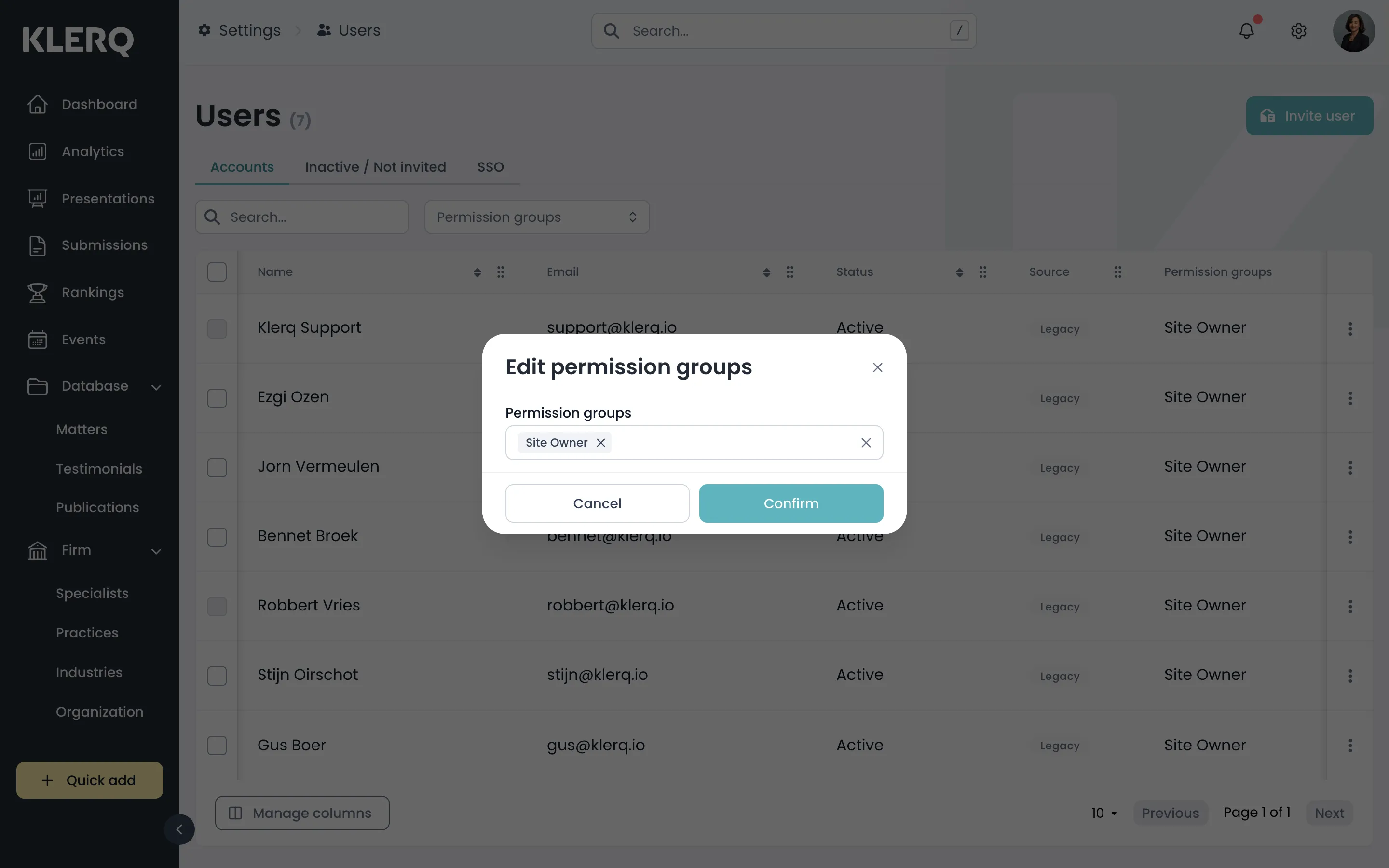
- Change their Permission groups and save. Membership is set on the user, not on the group.